A single virtual machine works fine until demand outgrows it. Azure Virtual Machine Scale Sets solve that by managing a group of identical VMs as one resource: spin instances up or down as demand changes, spread the load across them, and keep the whole group consistent without touching each machine by hand.
Why use a scale set
- Automatic scaling. Instance count adjusts as demand changes, instead of being fixed the moment you create the VM.
- High availability. Losing one instance doesn't take the application down with it.
- Simplified management. One scale set to configure instead of a dozen individual VMs.
Creating the scale set
From the Azure Portal, searching Virtual Machine Scale Set in the Marketplace gets you to the create flow. The basics are the usual subscription and resource group, then the scale set's own details: a name, region, and orchestration mode.
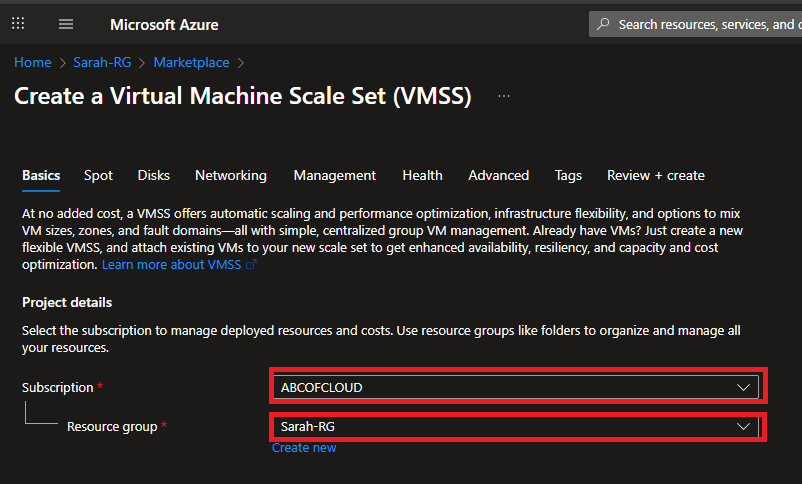
Orchestration mode is the one decision worth pausing on. Uniform deploys identical instances from a single defined VM profile, and it's what I used here. Flexible supports a mix of VM types with improved availability, up to 1,000 VMs, which matters more at a scale this walkthrough doesn't need. Security type, scaling mode (manual, to start), and an instance count of 2 round out the rest of the basics, followed by the usual image, size, and administrator account fields on the Instance details tab.
Networking works the same as it would for a single VM, an existing virtual network and subnet, plus a new network interface, except public inbound access stays off here since these instances aren't meant to be reached directly.
Scaling manually
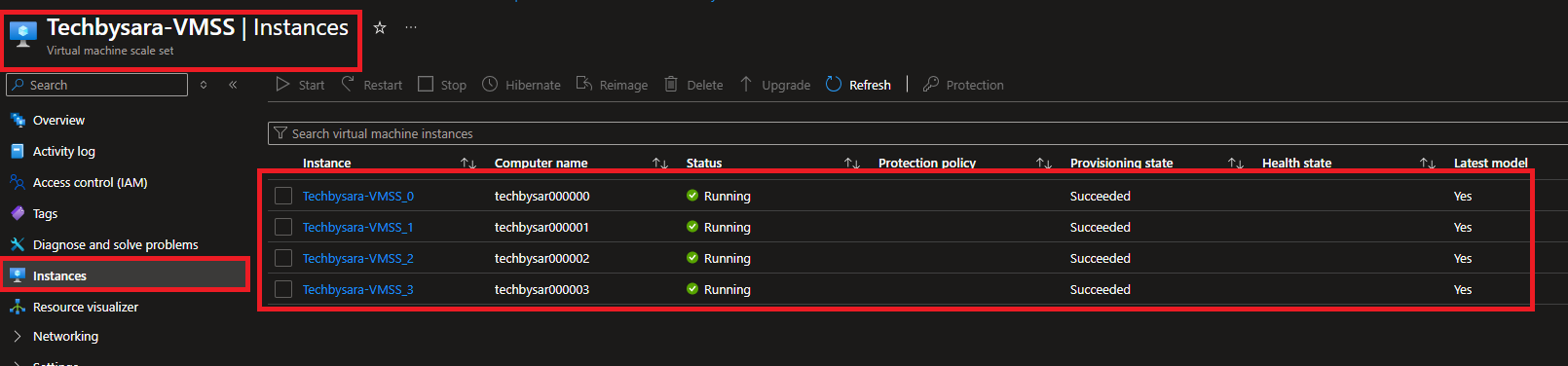
With the scale set created, Availability + scale > Scaling is where the instance count actually gets changed. Sliding it from 2 up to 4 and saving brings two more identical instances online within a few minutes.
Handing scaling over to autoscale
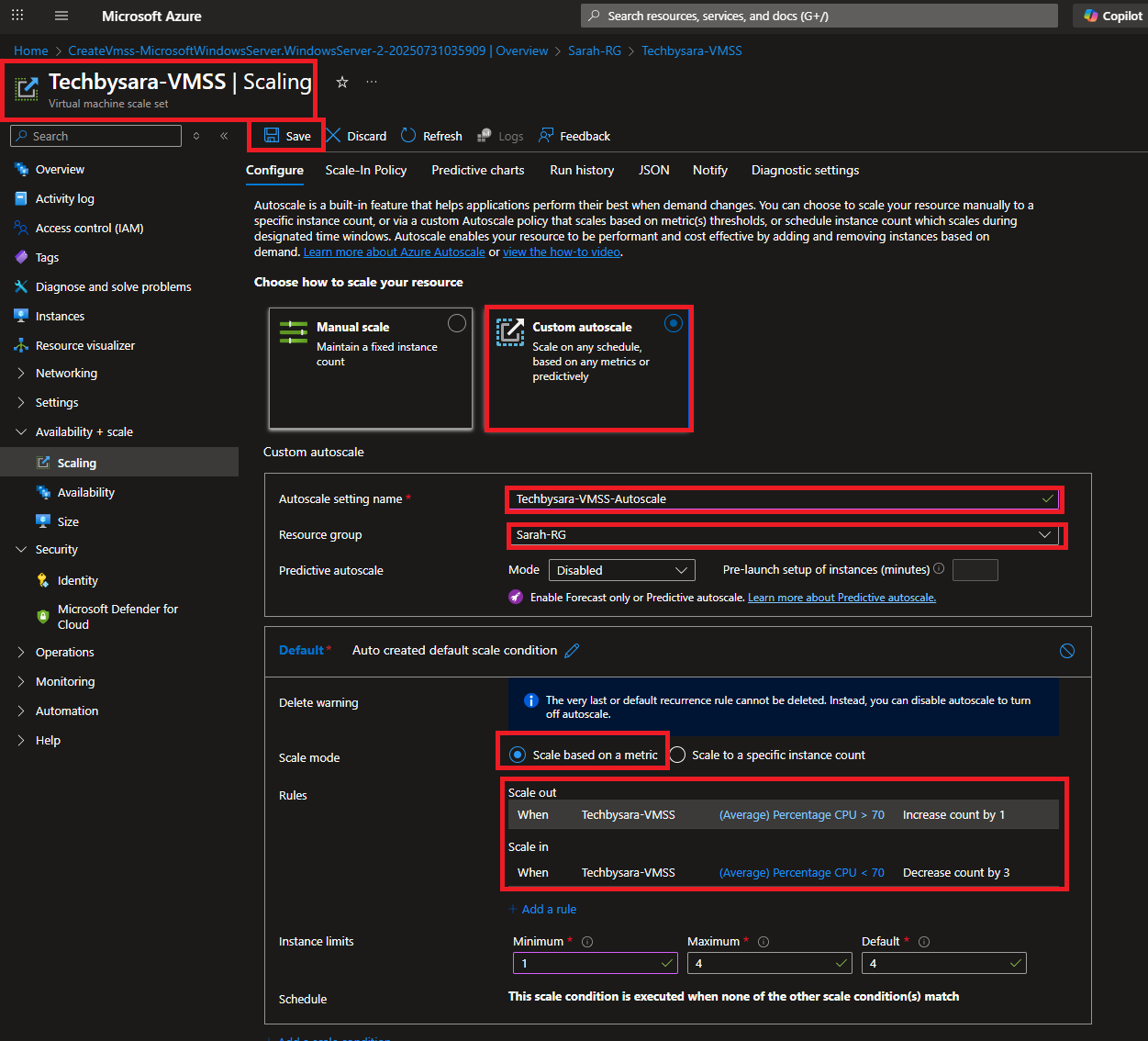
Manual scaling works, but it means watching demand yourself and adjusting by hand. Custom autoscale replaces that with rules: scale out when average CPU crosses a threshold, scale in when it drops back down.
I set a scale-out rule for average CPU above 70%, increasing the count by 1, and a scale-in rule for average CPU below 70%, decreasing it by 3, with instance limits set between 1 and 4.
Once CPU usage across the instances dropped below the threshold, the scale-in rule did exactly what it was configured to do, reducing the group back down automatically.
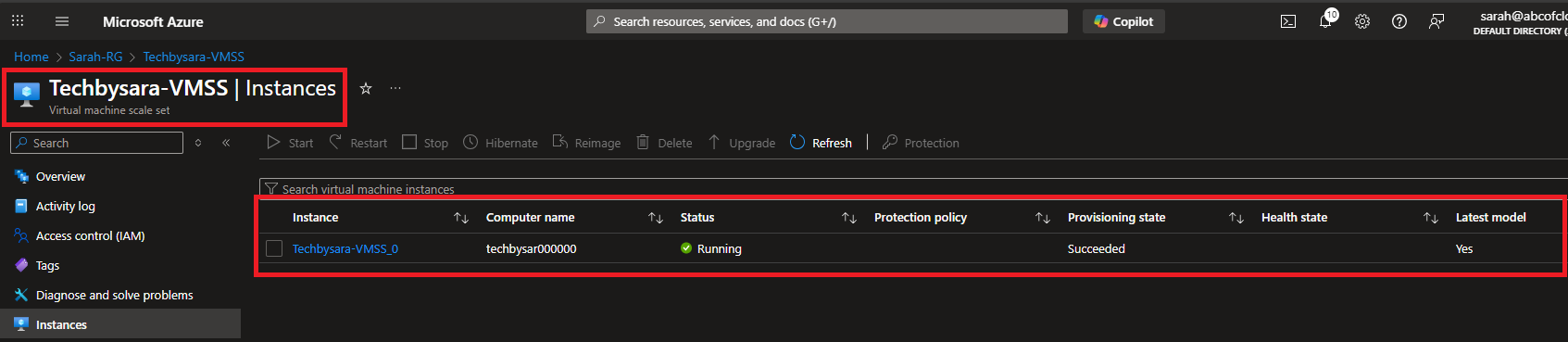
That's the core of it: a scale set that grows under load and shrinks once the load is gone, without anyone needing to be watching when it happens.
If you want every click and field along the way, I put together the complete guide as a PDF.