Most of us grow up clicking through folders with a mouse. The terminal replaces that with typed commands, and once it clicks, it's often faster than clicking ever was. I worked through this as a set of practice exercises inspired by the tutorials at abcofcloudcomputing.com, and it stuck well enough that I wanted to write it up properly. This walks through the basics: how Linux organizes files, how to move around, and how to create, copy, and remove things safely.
A few terms before we start. A directory is just a folder. A path is the address that gets you there. Root (/) is the very top of the filesystem, the folder everything else lives inside. Home (~) is your own personal folder (for the root user, that's /root).
Setting up a practice folder
mkdir -p creates a folder, and the -p flag tells it to create any parent folders along the way too, so mkdir -p ~/assignment/music/rock builds assignment, then music inside it, then rock inside that, all in one line. touch creates an empty file, useful for practice without needing a real one. ls -R lists a folder recursively, showing everything nested inside it, not just the top level.
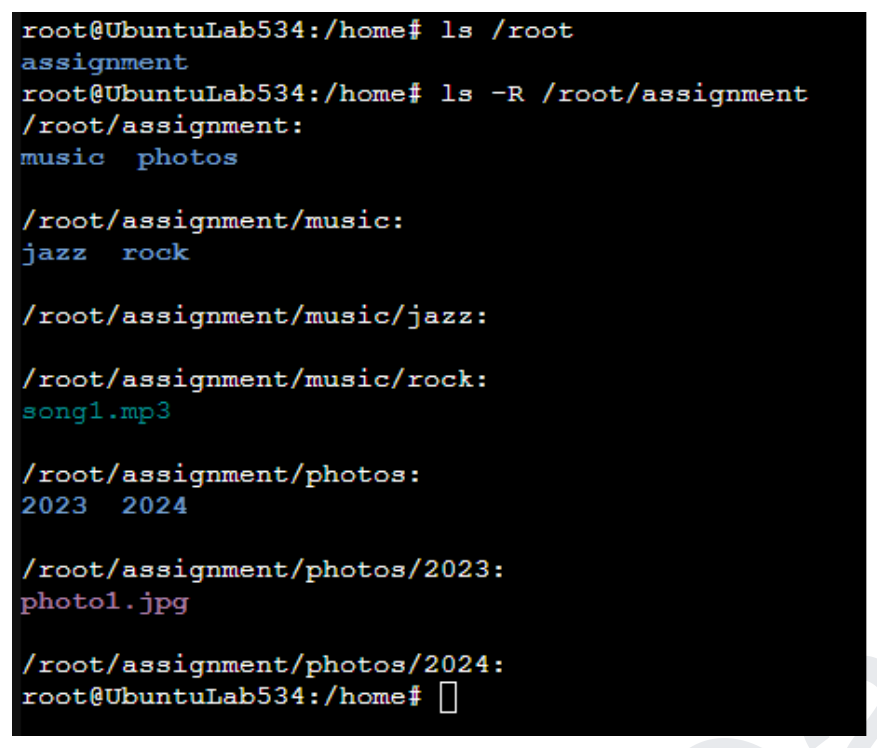
Navigating with an absolute path
An absolute path starts from root and spells out the full address, the same way a postal address works no matter where you're mailing it from. cd /root/assignment/music/rock jumps straight there, regardless of which folder you're currently sitting in.

Listing a folder without moving into it
You don't have to cd into a folder to see what's inside it. Running ls /var/log from anywhere lists that folder's contents while you stay exactly where you are, useful for a quick look without losing your place.

Navigating with a relative path
A relative path starts from wherever you currently are, not from root. . means the current folder, and .. means the parent folder one level up. cd jazz moves into a folder sitting right next to you, and chaining .. lets you climb back out and over: cd ../../photos/2023 goes up two levels to assignment, then back down into photos/2023.

Copying a file
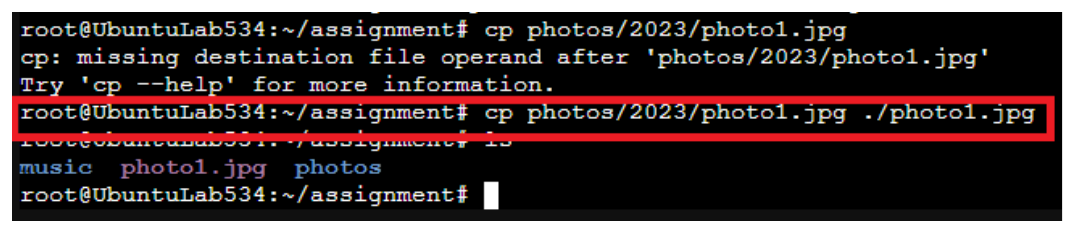
cp needs two things: what to copy, and where it's going. Leave off the destination and it fails with a clear complaint rather than guessing. cp photos/2023/photo1.jpg ./photo1.jpg copies the file into the current folder (./ standing in for "here").
Removing a file
rm deletes, and Linux has no recycle bin, so once a file is gone with rm, it's actually gone. Running ls -R afterward is a good habit: it confirms the file you meant to remove is gone, and nothing else was.
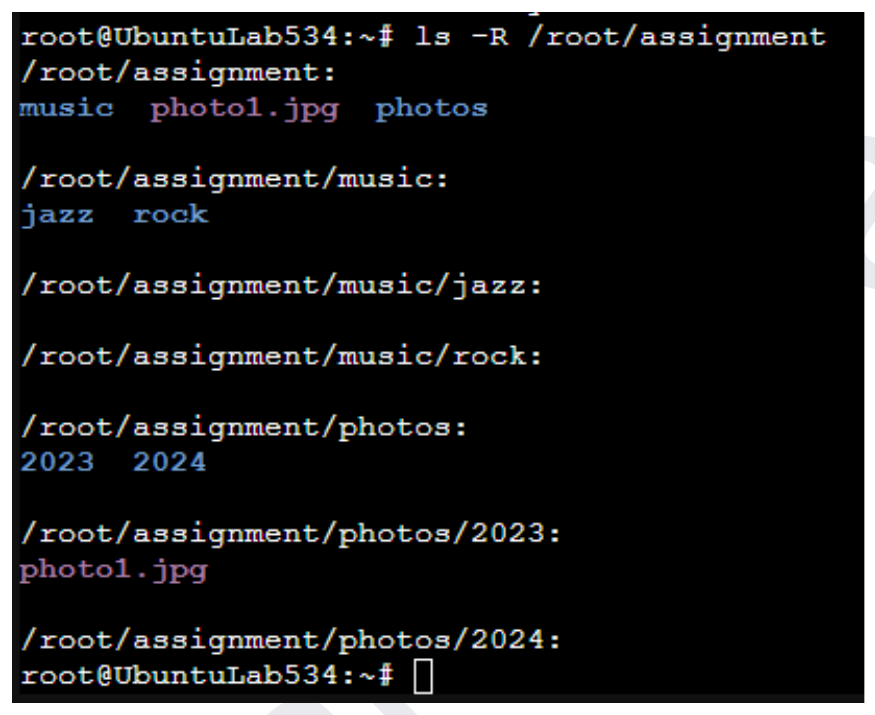
That's the core of getting around a Linux system: absolute paths when you want to be unambiguous, relative paths when you're already close, and a healthy respect for rm.
If you want the full walkthrough with every command, I put together the complete guide as a PDF.