A storage account with public network access left on is reachable from anywhere on the internet, as long as someone has the right key. A Private Endpoint changes that: it gives the storage account a private IP address inside your own virtual network, so traffic to it never touches the public internet at all.
Creating the storage account
From the Azure Portal, creating a storage account starts the same way most resources do: subscription, resource group, a globally unique name, and a region. Redundancy and performance tier come next, and for this walkthrough the defaults were enough.
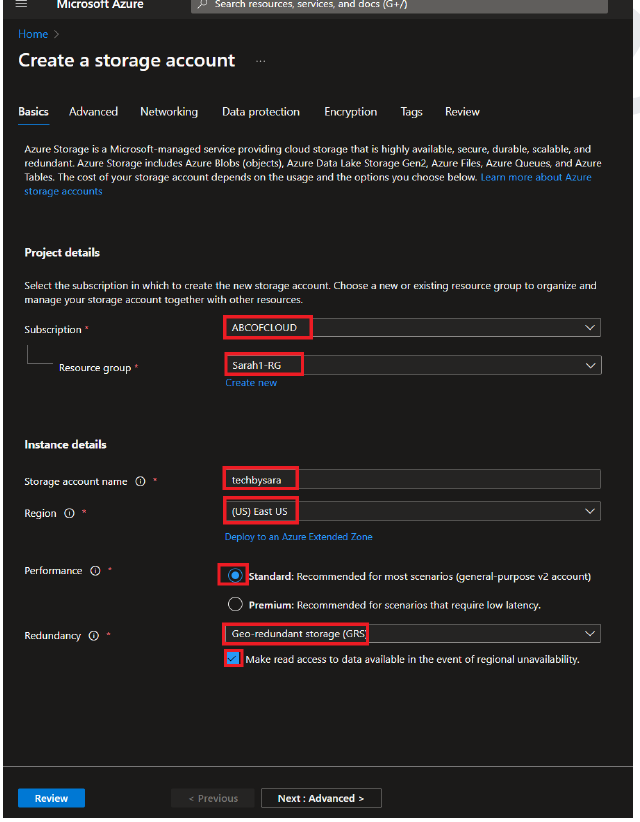
Adding a file share
Once the account exists, Storage browser (or File shares, under Data storage) is where the actual share gets created: a name and a quota, and it's ready.
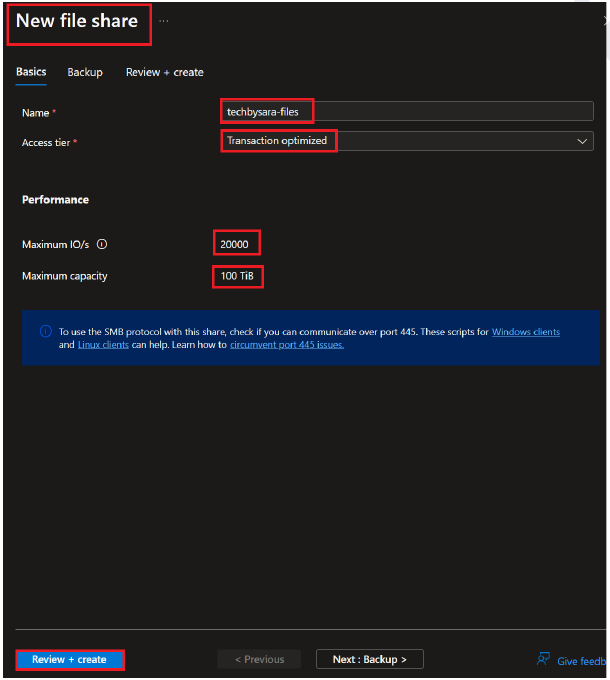
Uploading files
With the share created, uploading into it is a straightforward drag-and-drop from the portal. This is also the point worth testing before locking anything down: confirm the files are there and reachable while public access is still on, so there's a known-good state to compare against afterward.
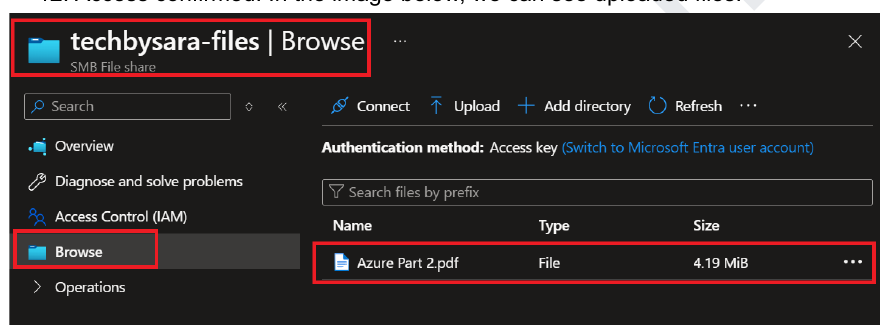
Disabling public network access
This is the actual security change: under Networking, switching Public network access to Disabled closes off every route into the storage account except the ones explicitly created afterward. On its own, this step would lock the account down completely, which is exactly why the private endpoint comes next.
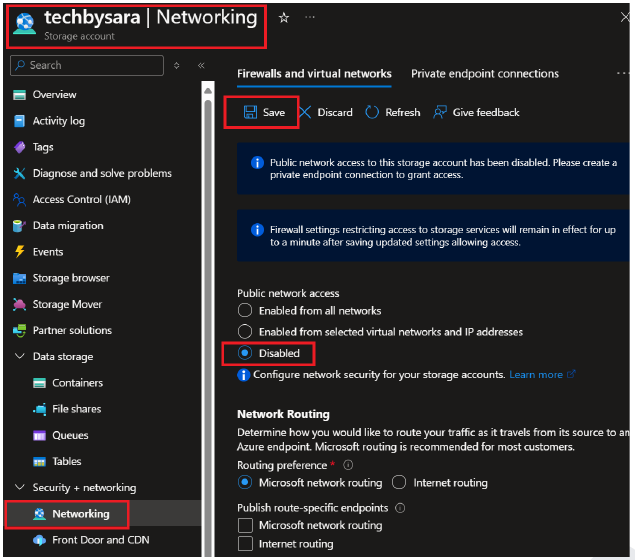
Creating a private endpoint
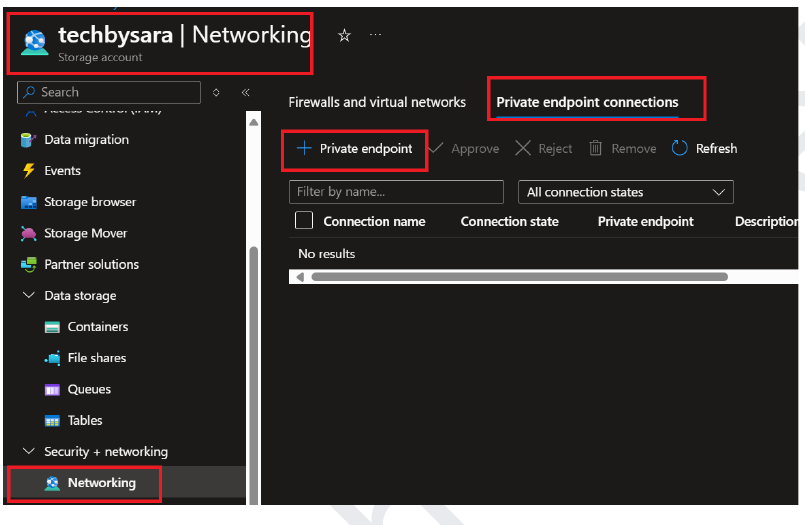
A private endpoint is what re-opens access, but only from inside a chosen virtual network. Creating one attaches a private IP, from the VNet and subnet selected during setup, directly to the storage account, with the file service as the target sub-resource.
Verifying from a VM
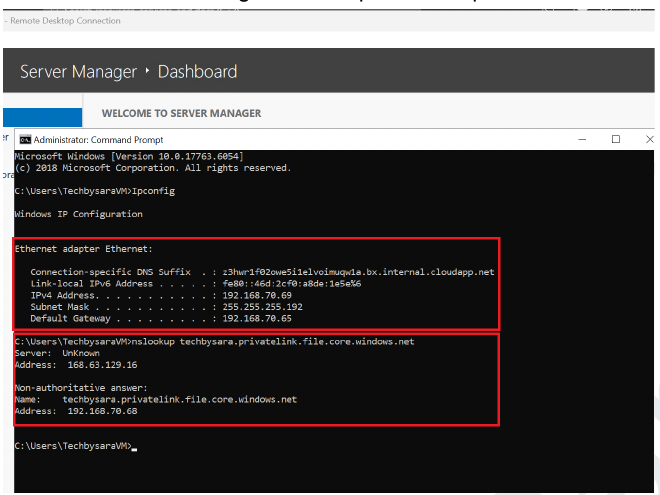
The real test is from a virtual machine inside that same virtual network: running nslookup against the storage account's file endpoint should resolve to the private IP instead of a public one, confirming that traffic to the storage account now stays entirely inside the network.
That's the pattern: build it open enough to confirm it works, then close the public door and open a private one instead. The storage account ends up reachable only from where it's actually needed, not from anywhere with the key.
If you want every click and field along the way, I put together the complete guide as a PDF.