Microsoft Entra ID (formerly Azure Active Directory) is the identity and access management layer behind Microsoft 365, Azure, and most of the SaaS tools an organisation signs into every day. Before anyone can sign in anywhere, they need an account, and that account needs the right licenses attached to it. This walkthrough covers both halves: creating the user, then getting them from "signed in with nothing" to "signed in with a full Microsoft 365 toolkit."
I'm using a test account, Amie Wealth, throughout, so I can show the account with and without licenses without touching anyone real.
Creating the user
From the Entra admin center, it's Identity > Users > All users > New user > Create new user. The Basics tab needs a user principal name (the part before the @ plus a domain), a display name, and a password, either auto-generated or one you set yourself. Account enabled has to stay checked, or the account gets created but can't sign in at all.
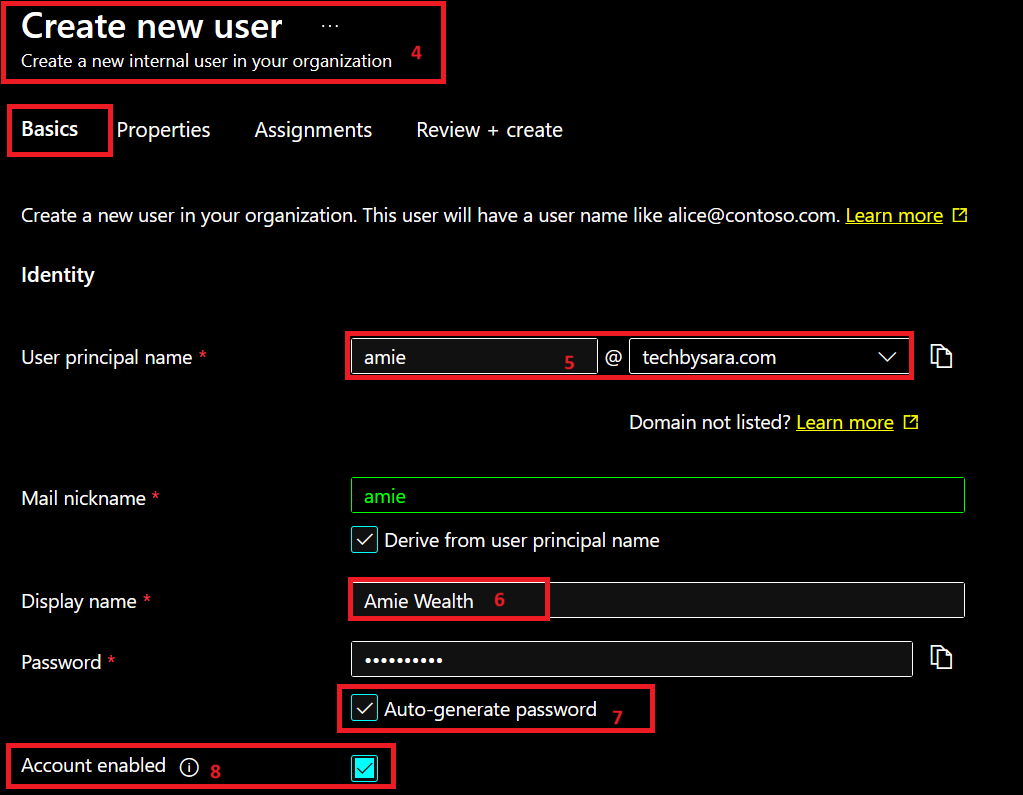
On the Properties tab I filled in the first and last name, set the user type to Member (the option for someone actually inside your organisation, as opposed to a guest), and picked a usage location. That last one matters more than it looks: licenses can't be assigned to an account without a usage location set.
Assignments is where you could add the user straight into a group, an administrative unit, or a role, though I skipped that for this walkthrough. Review + create checks everything over before the account actually gets made.
Signing in without a license
Once the account exists, signing in at office.microsoft.com prompts for a password reset on first login, then drops you into a Microsoft 365 home screen with nothing on it. No Teams, no Word, no Outlook. The account exists and can authenticate, but it can't do anything yet, because nothing has been licensed.
Assigning licenses
Back in the Entra admin center, under the user's own Licenses page, Assignments is where a license actually gets attached. Before that, the page just says "No license assignments found."
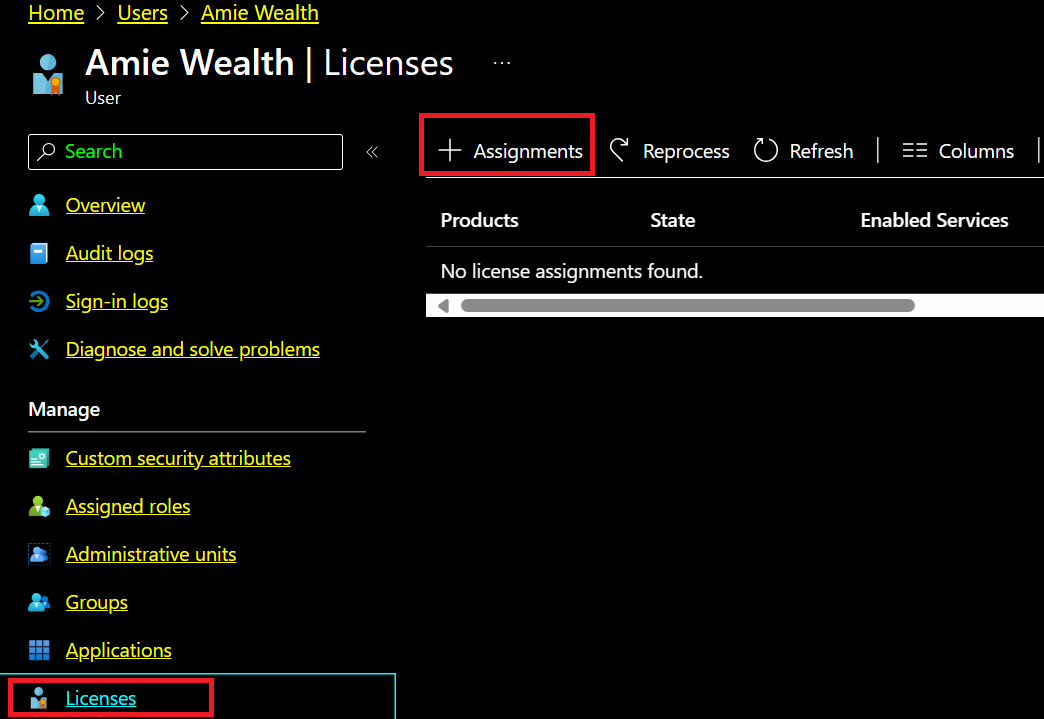
Selecting a license (I used a Microsoft 365 E5 Developer license here) and saving pushes it through. It can take a few minutes to fully propagate, but once it does, the same account that had nothing now has the full Microsoft 365 app tile: Teams, Word, Excel, PowerPoint, Outlook, OneDrive, OneNote, all of it.
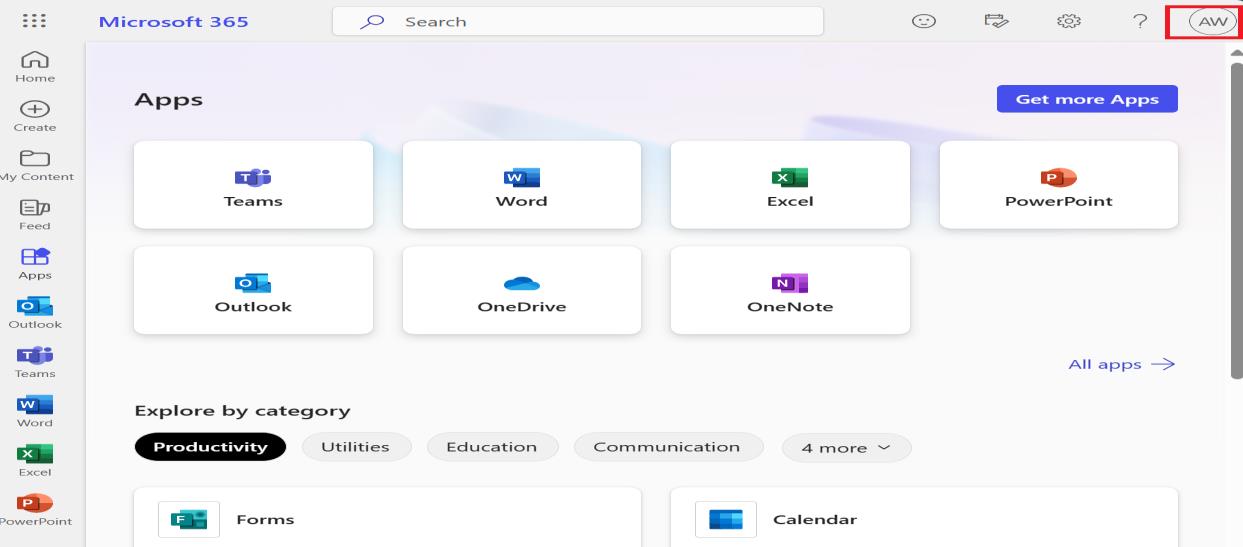
That's the full loop: create the identity, confirm it can sign in but can't do anything, then license it and watch the apps appear. It's a small workflow, but it sits underneath every new hire, every onboarding checklist, and every "why can't this person open Teams" ticket.
If you want the complete click-by-click version, including every field along the way, I put together the full guide as a PDF.