Two virtual machines sitting on separate virtual networks can't talk to each other by default, even in the same Azure region and the same subscription. Virtual network peering fixes that: it connects two VNets over Microsoft's own backbone, so resources on either side can reach each other privately, without the traffic ever touching the public internet. This walkthrough sets up two VMs on two different VNets, proves they can't communicate, peers the networks, then proves they can.
Before peering: two networks, no way in
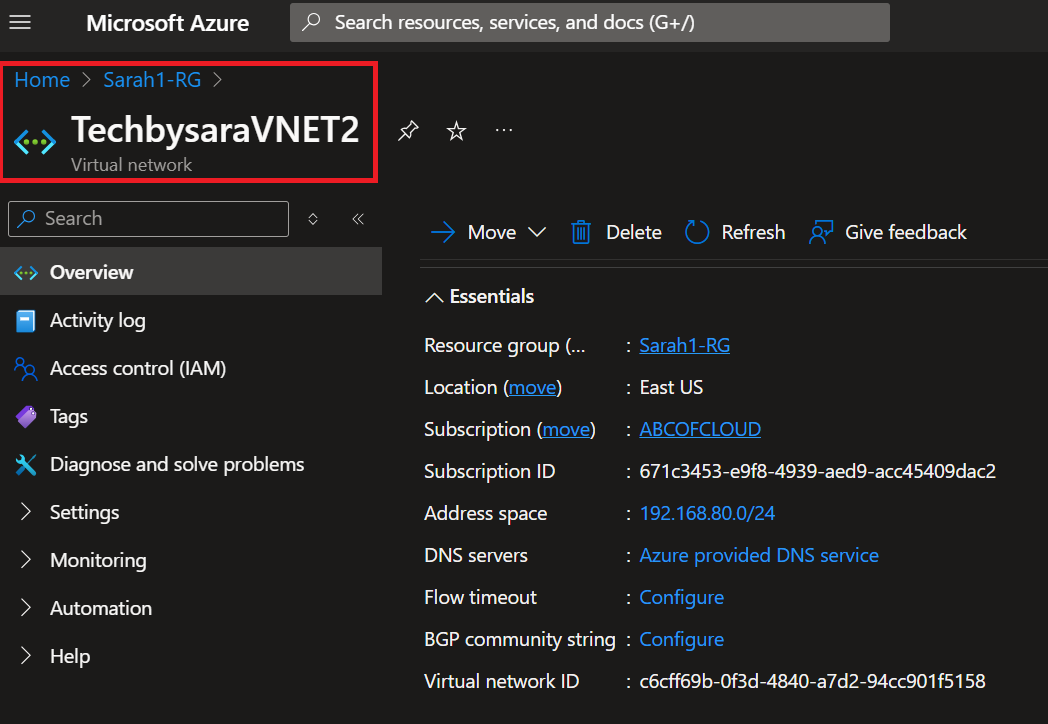
With TechbysaraVNET already in place from a previous article, I created a second network, TechbysaraVNET2, in the same resource group and region, then a second virtual machine, TechbysaraVM2, attached to it. TechbysaraVM1 stayed on the original VNet.
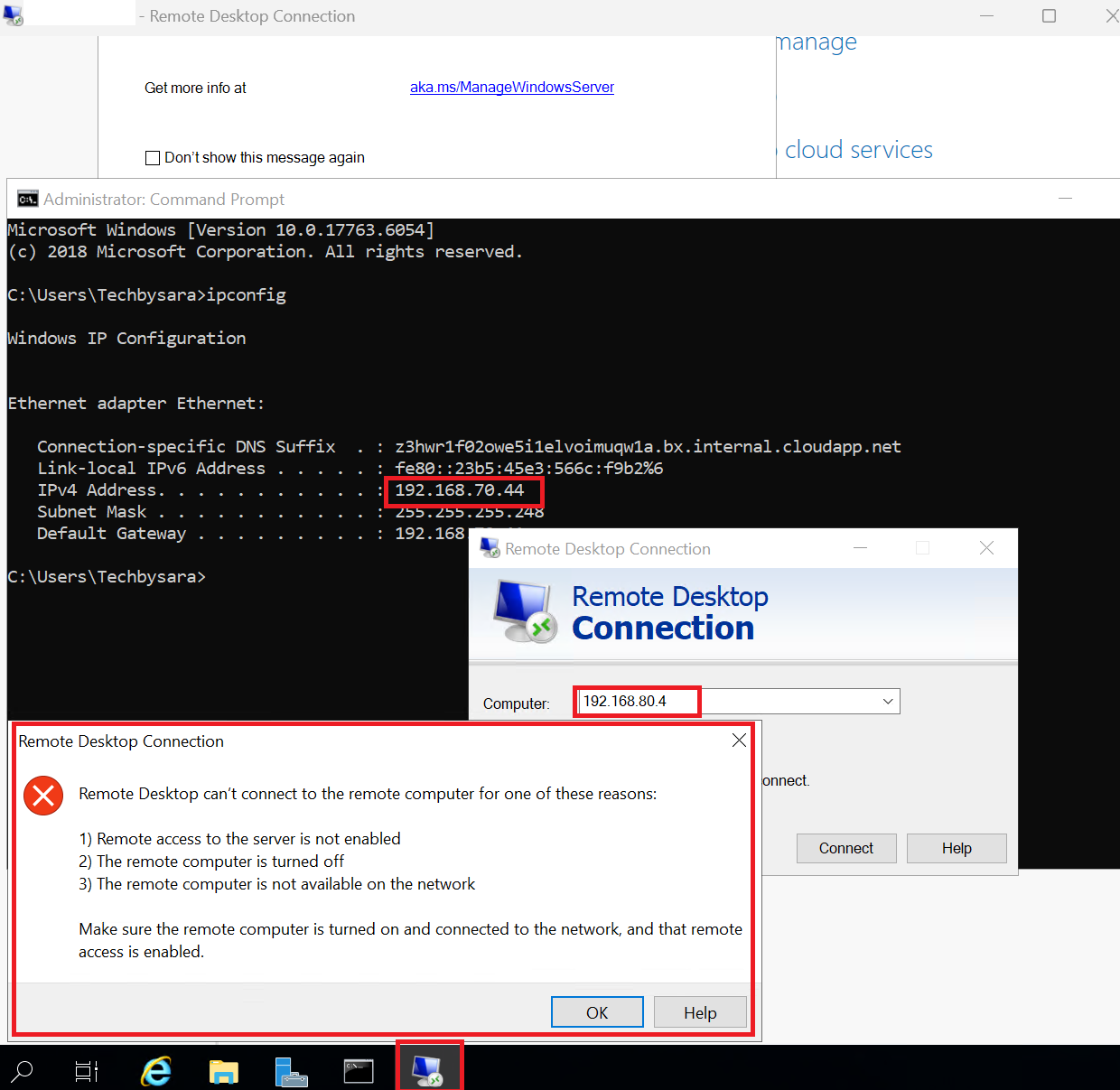
With both VMs running, connecting to TechbysaraVM1 over RDP and then attempting to reach TechbysaraVM2 by its private IP failed outright, and a ping to the same address timed out completely. Two virtual networks in the same subscription and region still couldn't see each other, exactly as expected: a virtual network is an isolated boundary until something explicitly connects it to another one.
Setting up the peering
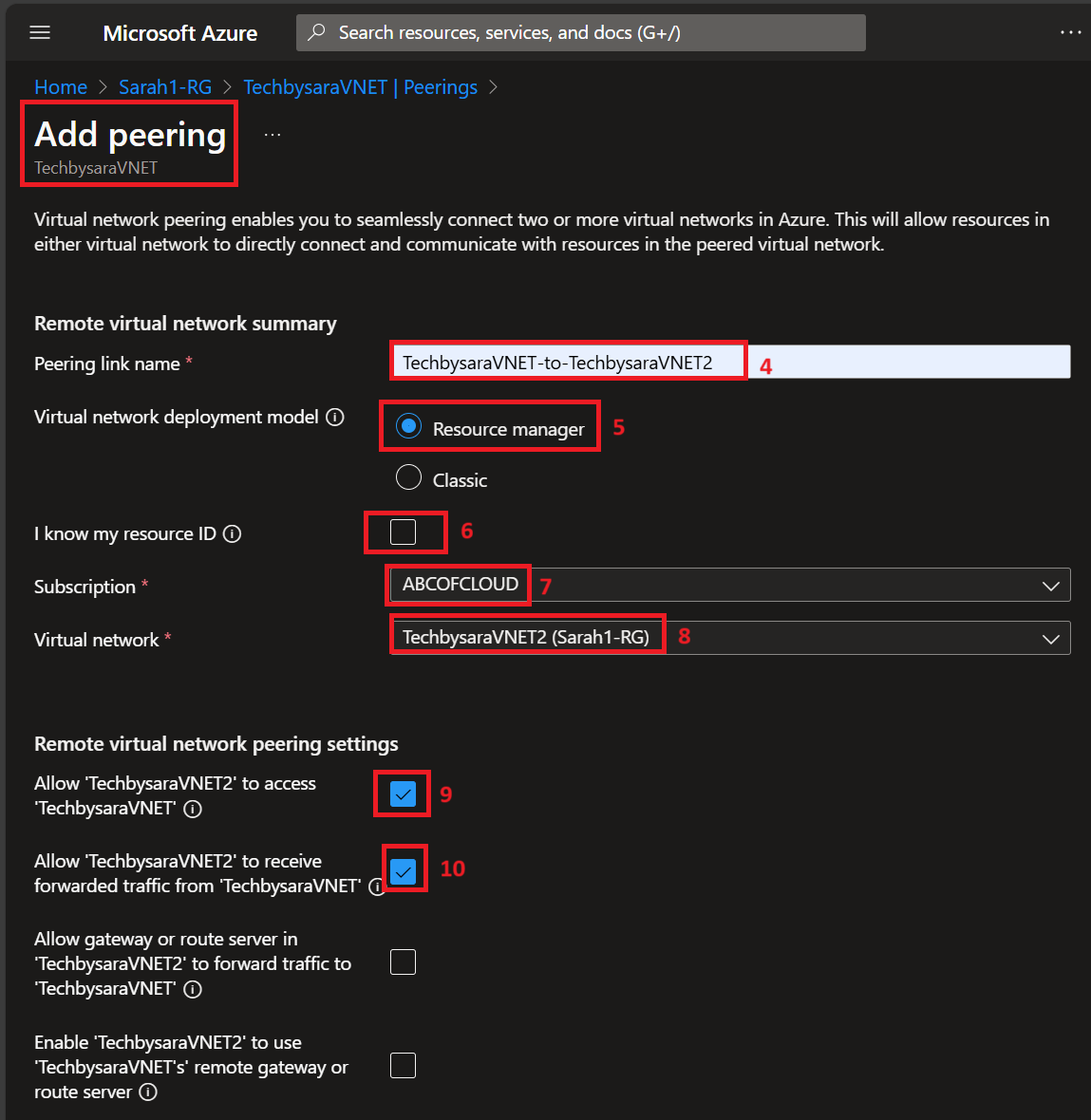
Peering is configured from each virtual network's own Peerings page, and it has to be added from both sides. From TechbysaraVNET, I added a peering pointing at TechbysaraVNET2, gave it a name, and allowed traffic to flow both ways: access between the two networks, and forwarded traffic in both directions. The same peering gets mirrored automatically on TechbysaraVNET2's own Peerings page with matching settings for the return trip.
Once added, TechbysaraVNET's Peerings list showed the link as Fully Synchronized and Connected, and each VM's effective routes picked up the peered network's address range automatically, no manual route tables needed.
After peering: the same test, a different result
With the peering live, I repeated the exact same test: RDP from TechbysaraVM1 to TechbysaraVM2's private IP, then a ping to confirm. This time the connection went through cleanly, and the ping came back with 0% packet loss.
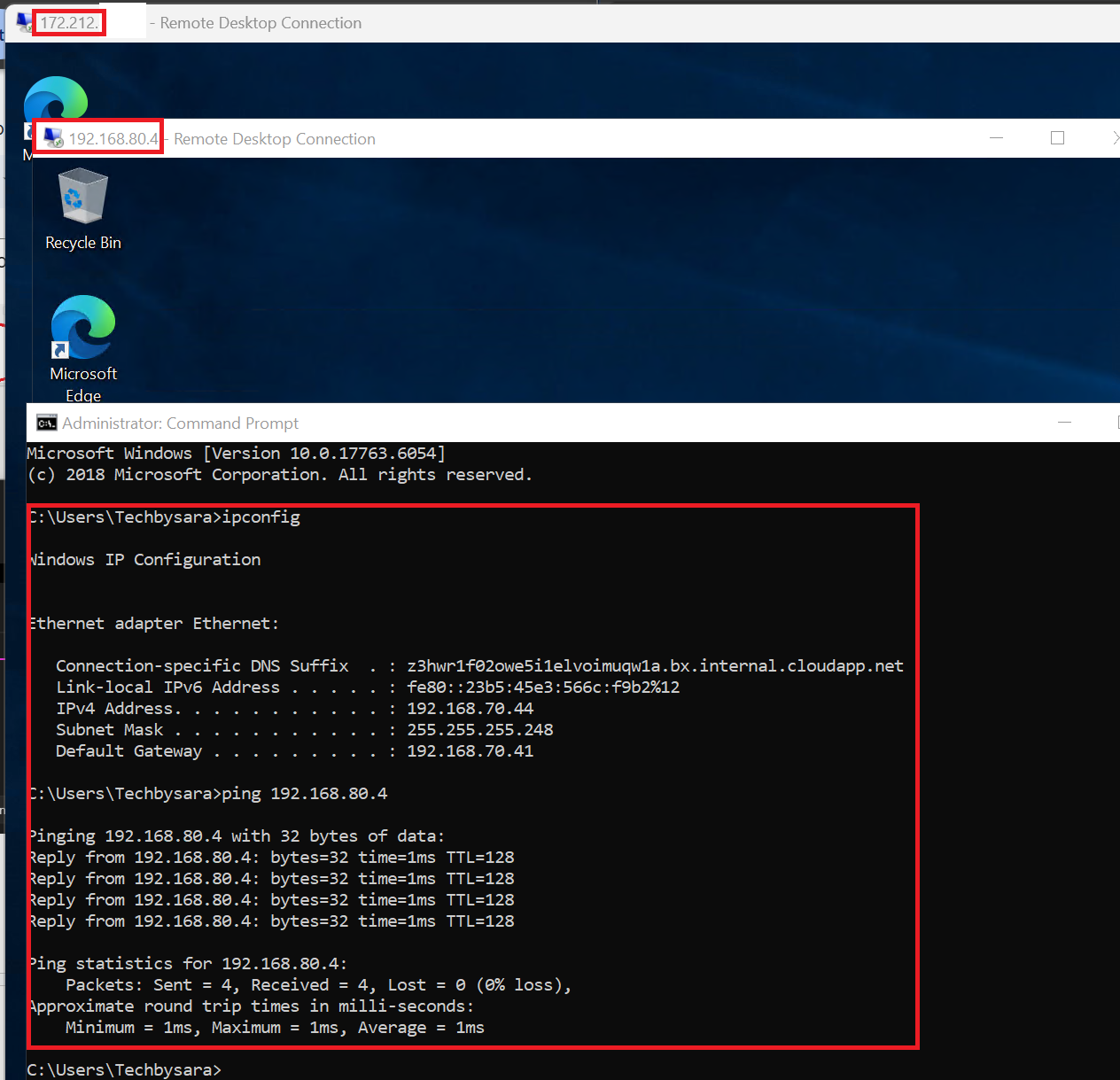
Same two virtual machines, same private IPs. The only thing that changed was the peering, and that was enough to turn two isolated networks into one connected one.
If you want every click and field along the way, I put together the complete guide as a PDF.